ODBC
ODBC Connection (e.g. Excel)
With the provided credentials you can set up an ODBC connection from your environment to the AA DWH . You’ll need to:
- Download and install the right ODBC driver for your platform;
- Configure the driver;
- Test the driver with an application of your choice.
Request "service" user access
The credentials you initially received from Paxon ⸗ Active Ants are typically for a "person"-type user in Snowflake. Most likely you do not want to use this type of user for ODBC access, since each "person"-type account requires MFA, which is annoying when using for ODBC access.
Therefore you would need to request a "service"-type account, which will be named something like "CLIENT_1234" (do not use "CLIENT_1234" anywhere, this is just an example).
See ServiceAcounts for more details.
Download & Install ODBC driver
Get the Snowflake ODBC driver for your platform: https://www.snowflake.com/en/developers/downloads/odbc/
Select the tab with the right OS (Linux, MacOS or Windows).
Assuming you select Windows, select the latest MSI for your platform (win32 or win64).
Typically you would want to use the latest 64-bit driver.
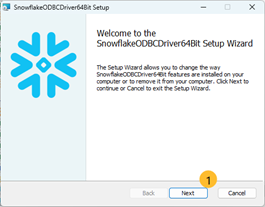
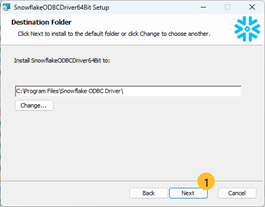
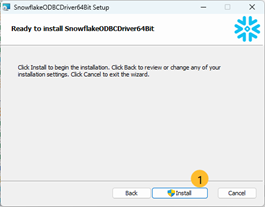
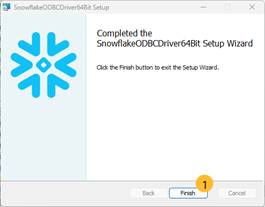
Once downloaded, execute the MSI, accept all the defaults (Next (1) – Next (1) – Install (1) – Finish (1)). Finish the installation.
Configure ODBC Driver
On your local machine: hit Windows-S, search for "ODBC Data Sources 64 bit" (1).
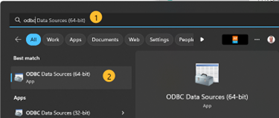
Open that app (2); “ODBC Data Sources (64-bit)”:
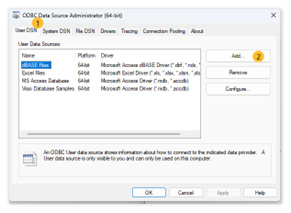
On the “UserDSN”-tab (1), click on Add... (2)
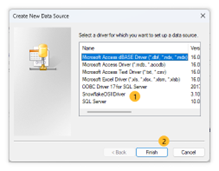
Select the “SnowflakeDSIIDriver” (1) and click “Finish” (2):
Fill in your credentials:
- Data Source (1): “ActiveAnts DataWarehouse”. You can choose how to name this source
- User (2): CLIENT_1234. The username provided to you by Paxon ⸗ Active Ants, most likely your email address. Please do not use "CLIENT_1234" (unless your username is actually "CLIENT_1234"), but the username as provided to you by Active Ants.
- Password (3): -your password- The password provided to you by Paxon ⸗ Active Ants. Note that this password will NOT be saved with this source. It is only needed for setting up the initial connection.
- Server (4): astunbh-ln60614.snowflakecomputing.com. Exactly as stated here.
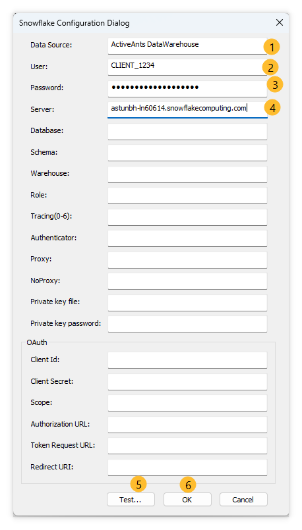
Leave the rest blank (you will use the defaults). Hit “Test” (5), you should see a success message:
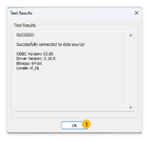
Hit “OK” (1).
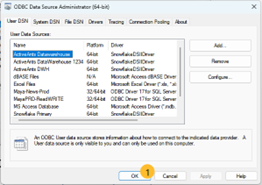
Hit OK (1) to set the User DSN on your system.
ODBC with private/public key
Please note that when using private/public key setup with ODBC, you will need to specify the type of Authenticator. Always use the value SNOWFLAKE_JWT here, when using public/private key setup:
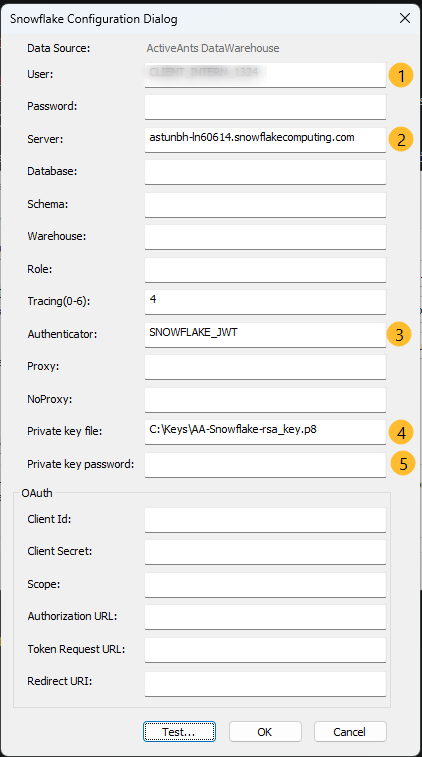
That's right: no password.
If you want to use this ODBC DSN from PowerBI Desktop specifically, see PowerBI - Keypair Authentication.
Test the ODBC driver with Excel
Follow these steps to see if you can get data from AA DWH into Excel.
- Start Excel.
- Open a new Excel sheet.
- Select cell A1.
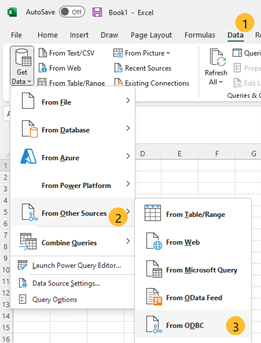
- Click the "Data" menu (1) > Get Data (first item in ribbon) > From Other Sources (2) > From ODBC (3):
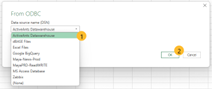
Select the ODBC Data source you just installed (1) and hit “OK” (2):
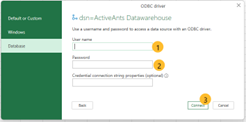
Enter your username (1) and password (2) again. Leave the “Credential connection string properties” empty. Hit “Connect” (3):
You will now see the databases / schemas and tables available in the DWH.
Open the database “DWH_DEV”, select the schema “IA_EXTERN”, and traverse down to Product. Select “Product” (1):
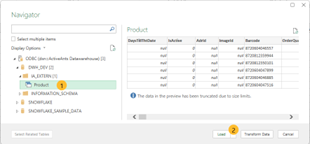
Hit “Load” (2):
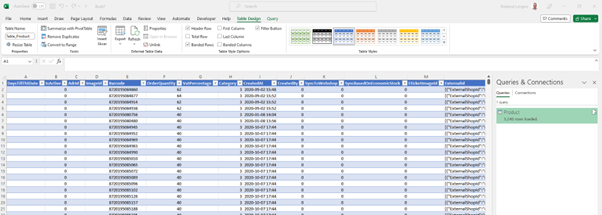
The data is then loaded.
Access for ODBC only
We described how to use your normal login credentials to make use of ODBC. More often than not, ODBC access is used for programmatic exchange of data. For example: updating some dataset on your end, at regular intervals. You typically would not use a user account that is linked to MFA protection for this.
Please check out Service Accounts for more details on how to set up proper access for these scenarios.